How to Determine the Best Laptop Computer for Your Purpose!
November 16, 2024
Laptop Repair Services in Dubai: Your Ultimate Guide
January 9, 202510 Most Frequented Laptop Problems: How to Solve Them
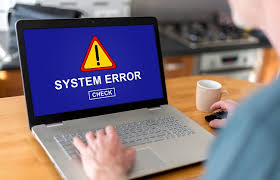
Laptops are now practically essential components of our day to day existence to offer connection, work, and enjoyment. But, as with any piece of electronics equipment, there are always challenges that can be frustrating and halt work on a laptop. Below are the leading ten basic problems with laptop PC’s and real life solutions to the problems.
1. Slow Performance
A slow performing computer reduces efficiency and turns something as ordinary as typing into a chore. This issue often arises due to:
in the system running the risk of having too many background applications in the system
Insufficient RAM or storage
Malware infections
Fix:
Download other resources and use the Task Manager by right-clicking at the bottom of the screen all the way to the right by using Ctrl + Shift + Esc.
Remove unnecessary programs and clear windows temporary files with the help of Disk Cleanup utility.
You can upgrade your RAM to the newer version or your can go for an SSD instead of an HDD.
Try to delete viruses using effective tools, which are antivirus software or antivirus programs.
2. Overheating
High temperature increases the stress on an internal laptop system, thereby likely to lead to poor performance and sudden power off. This often results from:
Dust builds up in ventilation grills
Malfunctioning fans
Poor ventilation
Fix:
Blow off dust around the laptop’s vents through the use of decompressed air.
Make sure the laptop is placed on a flat and hard surface for correct air circulation.
If you are experiencing excessive heat it may be wise to purchase a cooling pad.
3. Battery Draining Quickly
A fast discharging battery reduces the mobility that comes with having a laptop computer device. Causes include:
Several applications running in the background use a lot of power
A worn-out battery
High screen brightness
Fix:
Change your power settings to its power saver mode.
Dim the screen brightness and disconnect Bluetooth or Wi-Fi whenever you do not need it.
Among them, if the battery is old or damaged, it must be replaced.
4. Unresponsive Keyboard
An ineffective keyboard can be problematic for work. This can be due to:
Dirt or debris under the keys
Outdated or corrupted drivers
Physical damage
Fix:
Blow into the keyboard with the help of compressed air cleaner.
In the Windows Device Manager, update, or reinstall the keyboard drivers.
In case of the specific keys are spoiled, it is better to replace the whole keyboard.
5. Black or Flickering Screen
A black or flickering screen can stem from:
Broken cables that connects the display
Outdated graphics drivers
Hardware issues
Fix:
Power the laptop off and then back on as there may just be a problem with the computer that the power cycle will solve anyway.
Inspect display cables and reinstall graphic card’s driver.
If that cannot be done then, the best thing one has to do is to seek the services of a technician especially for the hardware part.
6. Wi-Fi Connectivity Problems
Difficulty connecting to Wi-Fi is a common frustration and may be caused by:
Outdated network drivers
Incorrect Wi-Fi settings
Router issues
Fix:
Power off your laptop and your router, and then turn it back on again.
Disconnect and reconnect with the Wi-Fi network.
The solutions include updating your network drivers or resetting your network settings.
7. Laptop Freezing
Frequent freezing can be caused by:
Overloaded CPU or RAM
Software conflicts
Malware
Fix:
They end unresponsive tasks with the help of Task Manager.
From the computer, run a scan to look for malware and delete them.
Always make sure you are running the latest OS and drivers.
8. No Sound
If your laptop’s sound suddenly stops working, it could be due to:
Muted audio settings
Corrupted sound drivers
Faulty speakers
Fix:
Look out if it is muted or the volumes are too low.
It is necessary to update the audio drivers or reinstall them.
You should also use another speaker or headphones’ output to check the sound quality.
9. USB Ports Not Working
Non-functional USB ports can be a hassle and may result from:
Dust accumulation
Outdated USB drivers
Physical damage
Fix:
This one should be quite obvious – use some compressed air to blow out the USB ports.
Reinstall the USB drivers and do it with the help of the Device Manager.
If the problem continues, said ports should be examined for physical damage.
10. Operating System Crashes
Random OS crashes can occur due to:
Corrupted system files
Software conflicts
Insufficient storage
Fix:
Go to the start and then control then click on system and do a restore to take the laptop back to its previous version.
Use other utilities, such as Windows SFC (Sysinternals’ System File Checker) to perform various system file fixings.
Clear out your drive by removing unwanted files or getting a better hard drive to store your data.
Final Thoughts
Computer problems are categorically different from hardware problems and consequently, many of the problems users encounter with laptops can be fixed using simple troubleshooting procedures but there are situations where the laptop requires professional repair. Most of these problems are easily avoided through general practices such as periodic cleanliness and check ups for the software. Where you have stubborn or complicated issues, it is advisable to seek the services from professionals like the Zcare UAE laptop repair services.